
Sidebar
Toolbar
The topmost element on every page is the site toolbar, which by default hosts the DokuWiki administration tools and user menu.
The layout of this component is split into two parts: on the left side there is either the user (default) or languages menu, as well as a place for additional placement hooks, while on the right-hand side is the list of page tools, as provided by DokuWiki, including an “overflow menu” for items that do not fit or are less important to show.
In detail:
Left-hand items
User menu
This is the default item for this place. It shows the user menu, or, if no user is logged in at this point, the login button, which looks as follows:
Once your are logged in to the DokuWiki system, it shows the name of the currently logged in account instead:
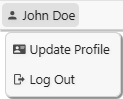
In this case, this works as a menu, which gives access to the user functions, as provided by DokuWiki:
Languages menu
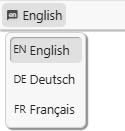
This element can be configured in the Settings to appear instead of the user menu, but it is only shown if the Translation plugin is also installed.
In this case, the menu will always show the current language and provide a menu with other configured languages:
Hooks
There are two include hooks available for this location:
toolbar-pre.htmlwill be inserted before the right-hand item.toolbar-post.htmlwill be inserted after the right-hand item.
The following screenshot shows the positioning of these two hooks:

Right-hand items
Page-tools menu

The items actually shown here depend on a number of circumstances, including the current state that the user is in (e.g. there are different items in editing mode) and additional items can also be installed by plugins.
Overflow menu
If there is not enough space to show all items (in particular on smaller screens, e.g. on smartphones or similar devices), the additional items will move to the “overflow menu” on the right-hand side:
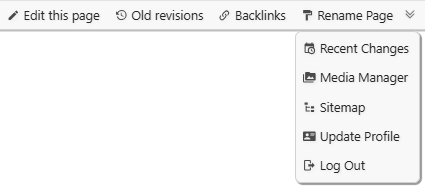
Please note that the user account items (“Update profile”, “Log Out” or “Log In”) are always found in the overflow menu. They are, however, also available in the user menu, e.g. on the left-hand side of the toolbar.
By changing the configuration option “toolbarstyle“ (title: “How should the toolbar menu be displayed?”) the behaviour can be changed so that all page-tools items will always be in the shown in the overflow menu only. This leaves more space in the toolbar for left-hand items (e.g. static content included via hooks).
Behaviour
The site toolbar is designed to appear visually distinct from the rest of the page, more resembling a part of the browser rather than being part of the page. It is also considered a less important tool for not logged-in users that only want to read the site content as it is for logged-in users, which may want to work with the site. These considerations are also reflected in some aspects of the toolbar’s behaviour:
- The toolbar always uses the whole width of the browser viewport, while the page content is limited to a (configurable) maximum width in the centre. On large screens, this can be very visible, while on smaller screen, this may not even be noticeable.
- When no user is logged in, the toolbar will scroll “out of the way”, however, when a user is logged in, it becomes “sticky” to the top of the viewport, making sure that the tools are always available without scrolling.
Configuration
Template settings
In the DokuWiki Configuration for this plugin, the following options are directly related to the toolbar:
- Toolbar Menu Style – should the toolbar menu (on the right-hand side) appear as a popup menu only, or as a horizontal menu that only overflows into the menu if space is tight?
- Toolbar Option – What should be shown in the left-hand side of the toolbar? Options are: “User information”, “Languages menu” or “Nothing”.
For more information, please see the page Settings.
Style settings
In the Template Style Settings, the following options are directly related to the appearance of the toolbar:
- Toolbar font family – a list of fonts that should be used for the toolbar.
- Toolbar font size – the font size to use in the toolbar.
- Toolbar font size mobile – alternative font size to use in mobile view.
- Toolbar background colour – Background colour for the toolbar *.
- Toolbar text colour - Text colour for the toolbar *.
- Toolbar icon colour – Colour to use for icons in the toolbar *.
- Toolbar focus colour – colour to use for focus highlights in the toolbar *.
The idea of the toolbar is that is should appear visually distinct from the page, more resembling a browser feature rather than a part of the web page. For this reason, there are so many configuration options for this element.